Sometimes an entry doesn’t reach Dynamics: a network problem, an expired connection, or a Dynamics outage. The add-on shows which entries made it and lets you send the rest again.
See which entries reached Dynamics
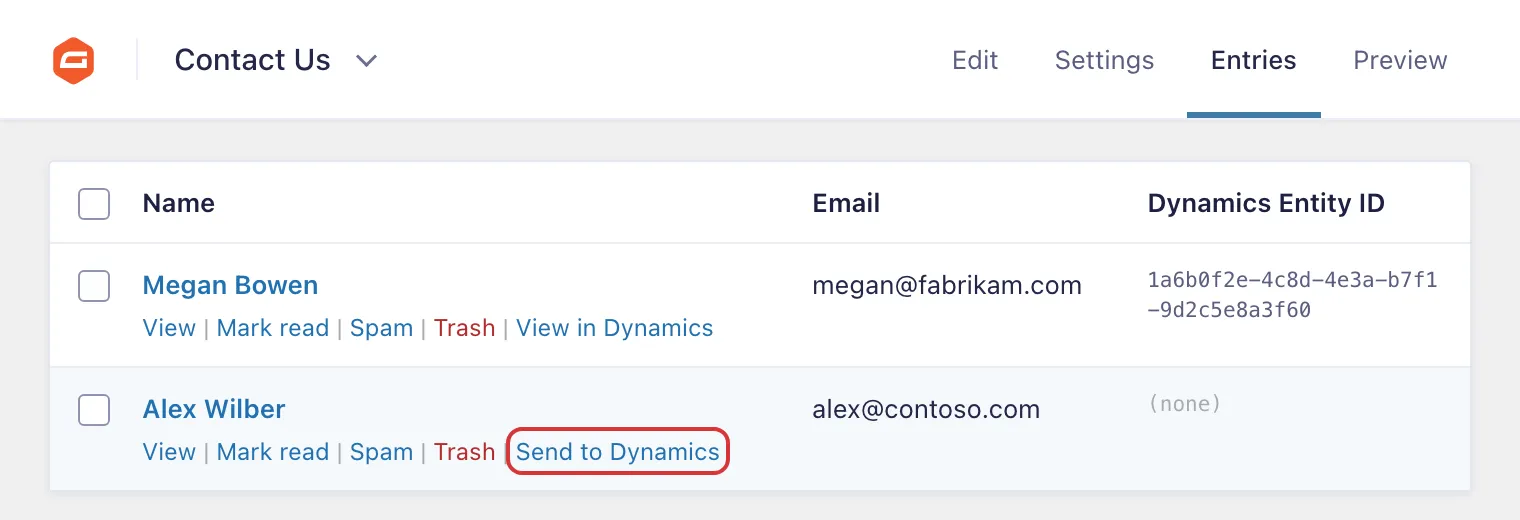
When the add-on creates a record, it saves the record’s ID on the entry. To see it in the entries list, click the gear icon in the table header (Select Entry Table Columns) and add Dynamics Entity ID.
Each entry also gets a link under its name:
- View in Dynamics opens the record in Dynamics.
- Send to Dynamics appears when the entry has no Dynamics record. Click it to run the form’s Dynamics feeds for that entry again. When it finishes, the link changes to View in Dynamics.
Send many entries at once
-
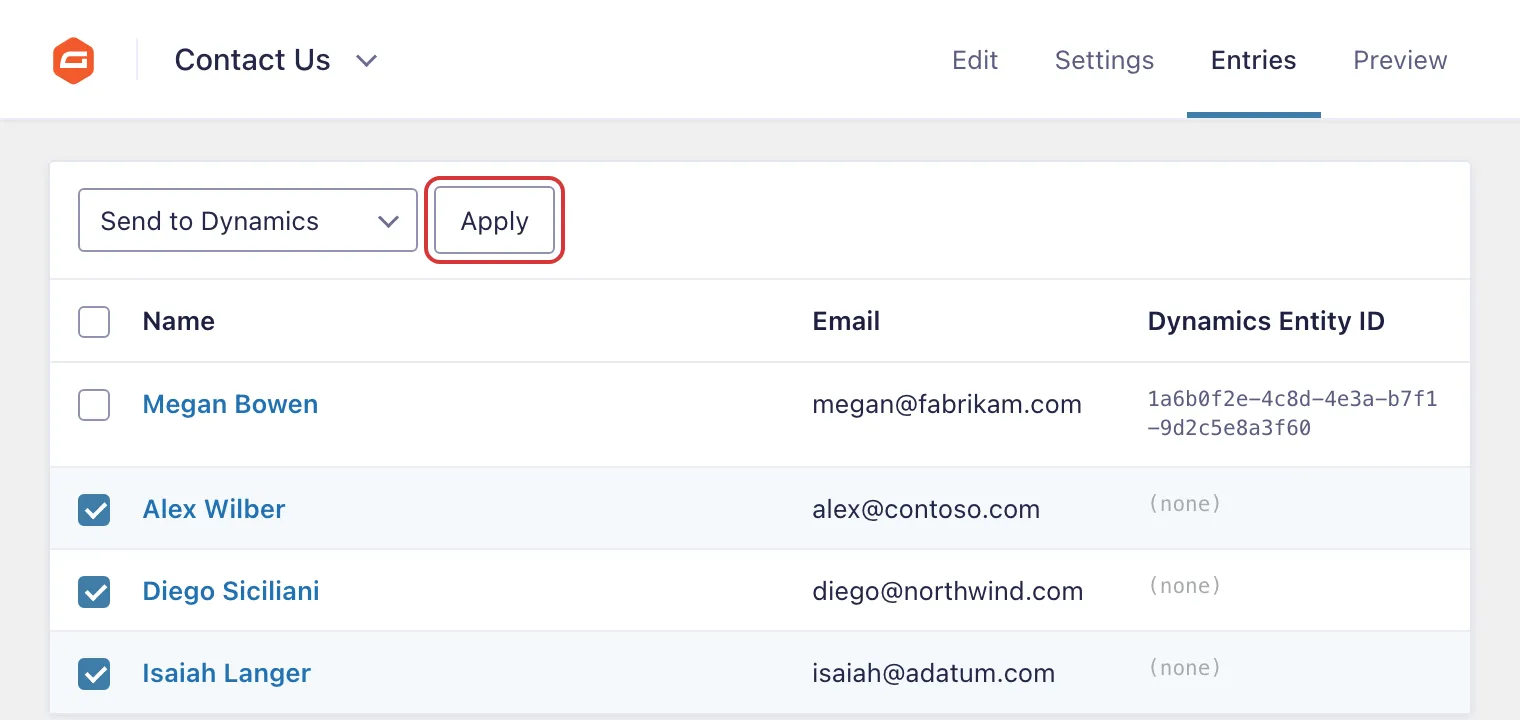
In the entries list, check the entries you want to send.
-
Choose Send to Dynamics from Bulk actions and click Apply.
-
The add-on reports how many entries it sent. It skips entries that already have a Dynamics record, so checking an entry that was already sent won’t create a duplicate.

If an entry fails, the message says so. To see the error from Dynamics, turn on logging in Forms > Settings, then check the Dynamics CRM log on the Logging tab. Troubleshooting Connectivity Problems covers the common causes.
Send to Dynamics only shows up in Bulk actions when the form has at least one Dynamics feed.