Lookup columns in Dynamics link one record to another, such as a lead’s Source Campaign or a contact’s Company Name. Dynamics stores the related record’s ID, a GUID, not its name. The Gravity Forms Dynamics CRM Add-On gives you three ways to set a lookup. Only the last one needs a GUID:
- Let the visitor choose a record from a drop-down filled from Dynamics.
- Link every entry to the same campaign or marketing list with the feed settings.
- Link every entry to the same record with a hidden field, for any other lookup.
Let the visitor choose a record
This example lets the visitor pick the campaign that sets a lead’s Source Campaign.
-
In the Gravity Forms editor, add a Drop Down field.
-
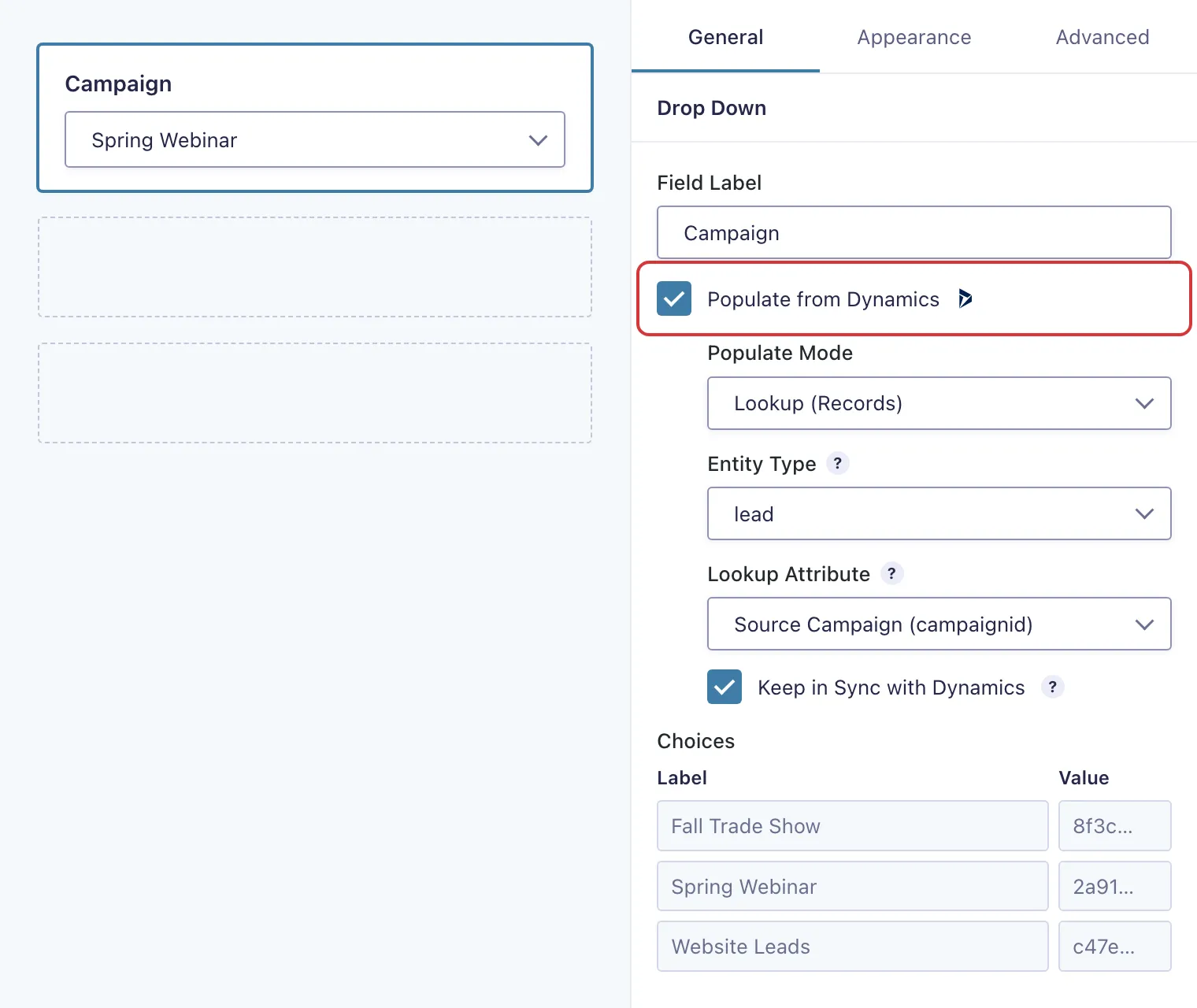
In the field’s settings, check Populate from Dynamics.
-
Set Populate Mode to Lookup (Records).
-
Choose the Entity Type that has the lookup column, such as
lead. -
Choose the Lookup Attribute, such as Source Campaign (campaignid). The add-on fills in the choices with active records from the related table. Each choice shows the record’s name and stores its GUID.
-
Check Keep in Sync with Dynamics to refresh the choices when the form loads.
-
In your feed, map the field to the lookup column, such as Source Campaign (CampaignId).
The drop-down shows up to 250 active records, sorted by name. With Keep in Sync on, the add-on caches the records for an hour. Change that under Forms > Settings > Dynamics CRM > Lookup Cache Duration (seconds), or set it to 0 to turn caching off. Refresh Metadata on the same page also clears the cache.
Link every entry to the same campaign or marketing list
For campaigns and marketing lists, the feed has its own settings, so you can pick the record by name.
-
Open your feed.
-
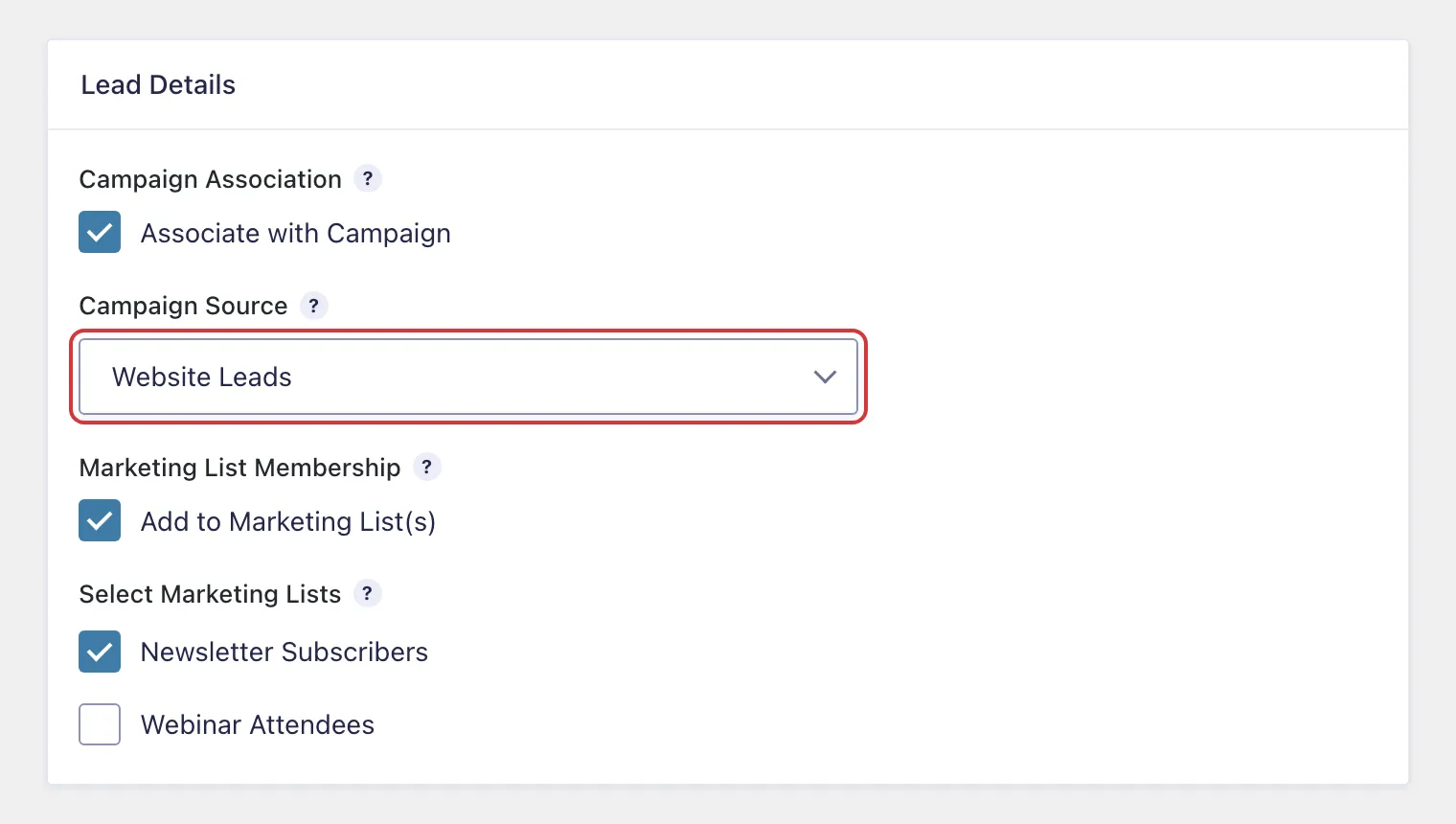
Under Campaign Association, check Associate with Campaign and choose the campaign under Campaign Source. The add-on sets the record’s Source Campaign. To read the campaign from the form instead, for example a hidden field filled from a UTM parameter, choose Map to Form Field.
-
Under Marketing List Membership, check Add to Marketing List(s) and select the lists. Marketing lists need Dynamics 365 Web API version 9.0 or later.
Link every entry to the same record
For any other lookup, put the record’s GUID in a hidden field. This example links every lead to one parent account.
-
In Dynamics, open the record. Its GUID is the
idvalue in the browser’s address bar. Copy the part afterid=, up to the next&if there is one.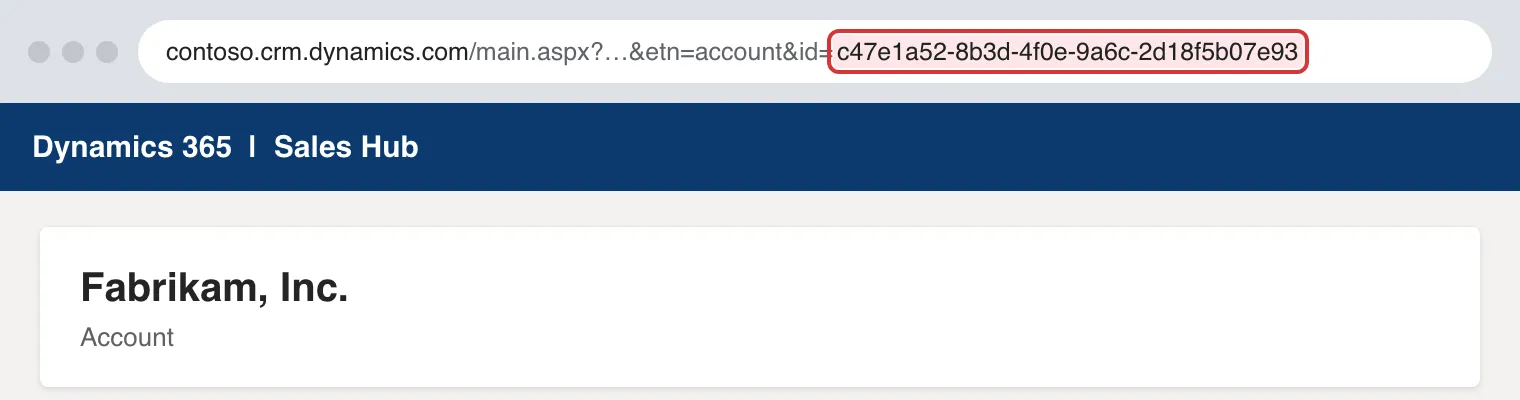
-
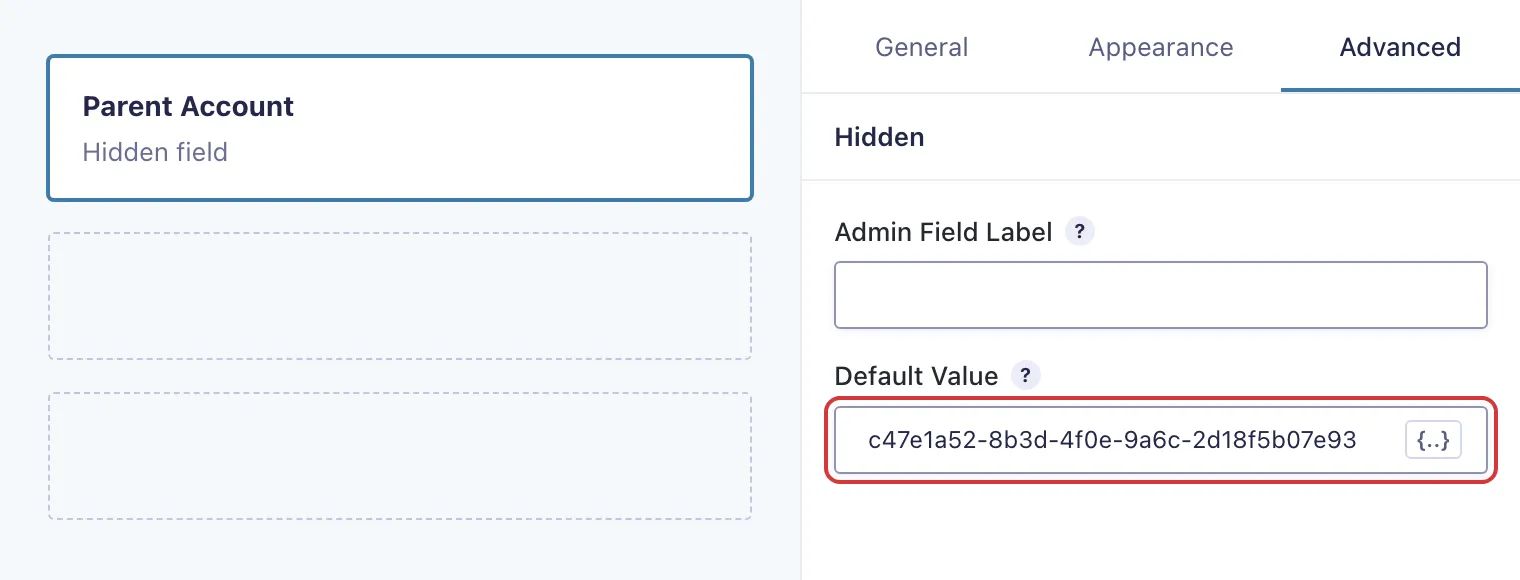
In the Gravity Forms editor, add a Hidden field, such as “Parent Account”.
-
On the field’s Advanced tab, paste the GUID into Default Value.
-
In your feed, map the hidden field to the lookup column, such as Parent Account for lead (ParentAccountId).
New entries now link to that record.